Trackers & Counters
Log when you last did something, count the days to or since a date, and keep a running number with Tree Launcher's trackers, day counts and counters.
Three Ways to Keep Count
- A tracker remembers each time you do something, like watering the plants or calling home, and shows how long it has been.
- A day count shows the days until a date, or the days since one.
- A counter is a number you change by hand with − and +.
All three live on your pages as ordinary items, next to your notes, tasks and apps.
Trackers
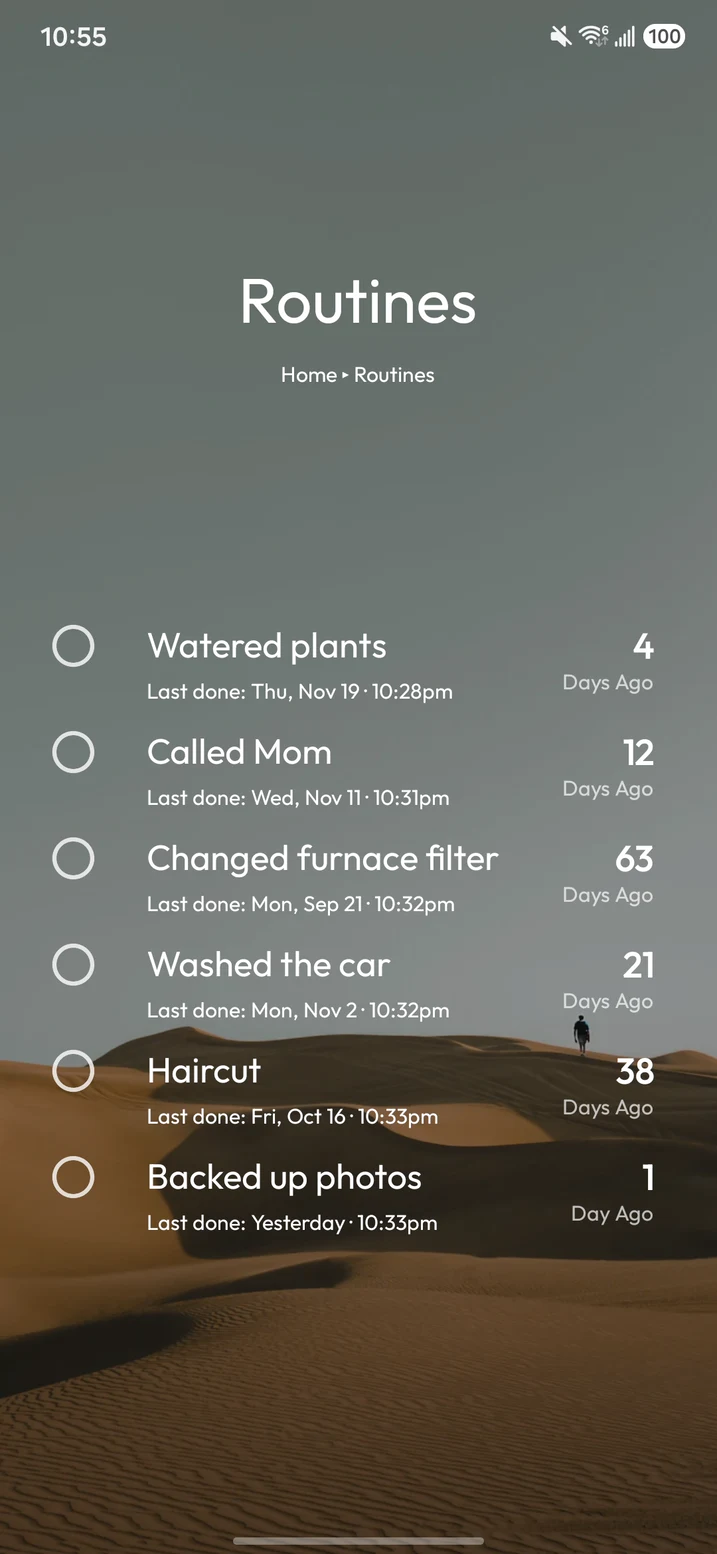
A tracker is a task with a history. Checking it off doesn't finish it. It records the time and stays ready for the next one.
Creating a Tracker
- Enter Edit Mode and tap +
- Under Plan & Track, choose Tracker
- Type what you want to track and save
The new row shows Never Done until you log it for the first time.
Logging a Time
- Tap the checkbox to log it right now. A message confirms it, with Undo.
- Tap the row to open the log sheet when it didn't happen just now. Choose Done today, Yesterday, 2 days ago, or Pick date… for an earlier day.
After a log, the row shows Last done with the day and time under its name, and the number of days since at the end of the row.
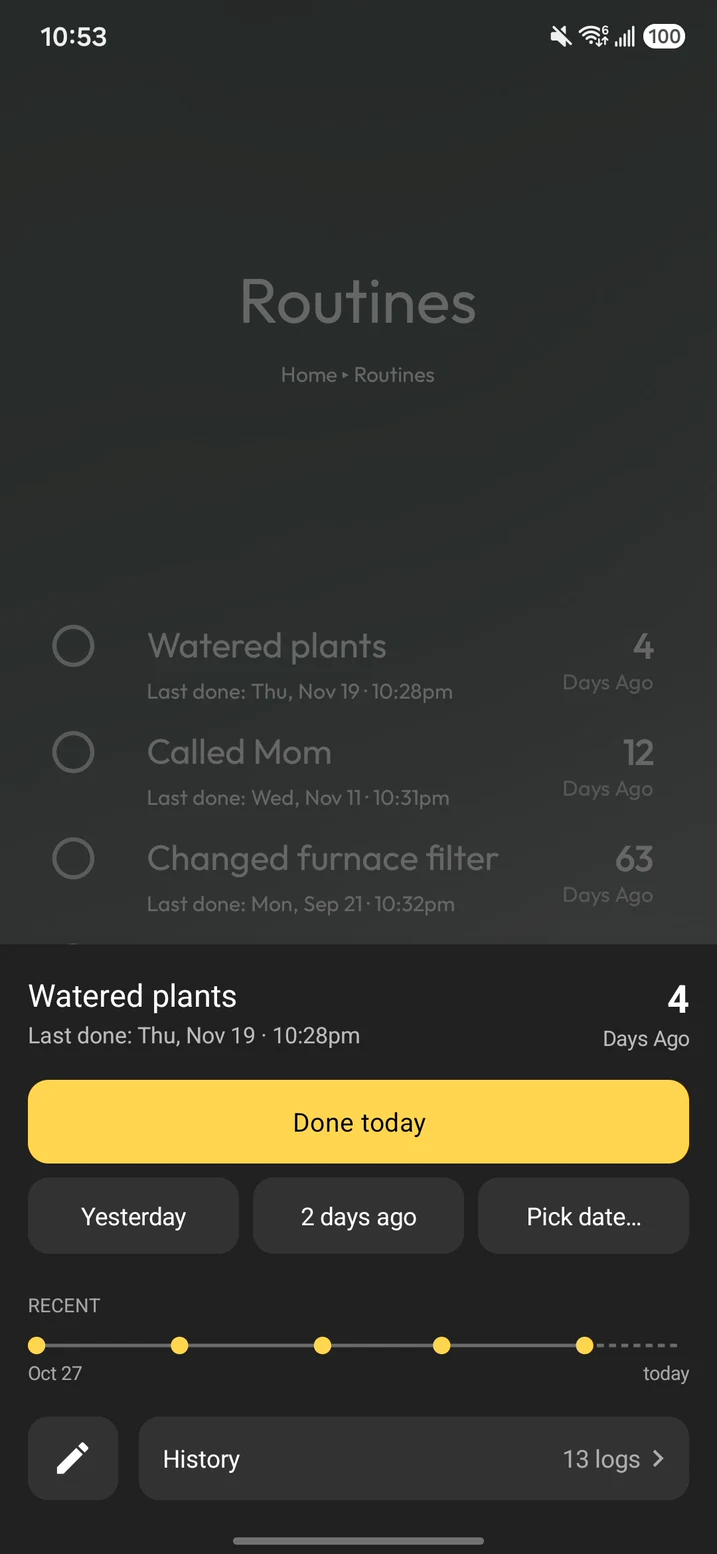
The log sheet also shows your Recent times on a timeline, and its bottom row has Edit (to open the item's editor) and History, with the number of logs.
History
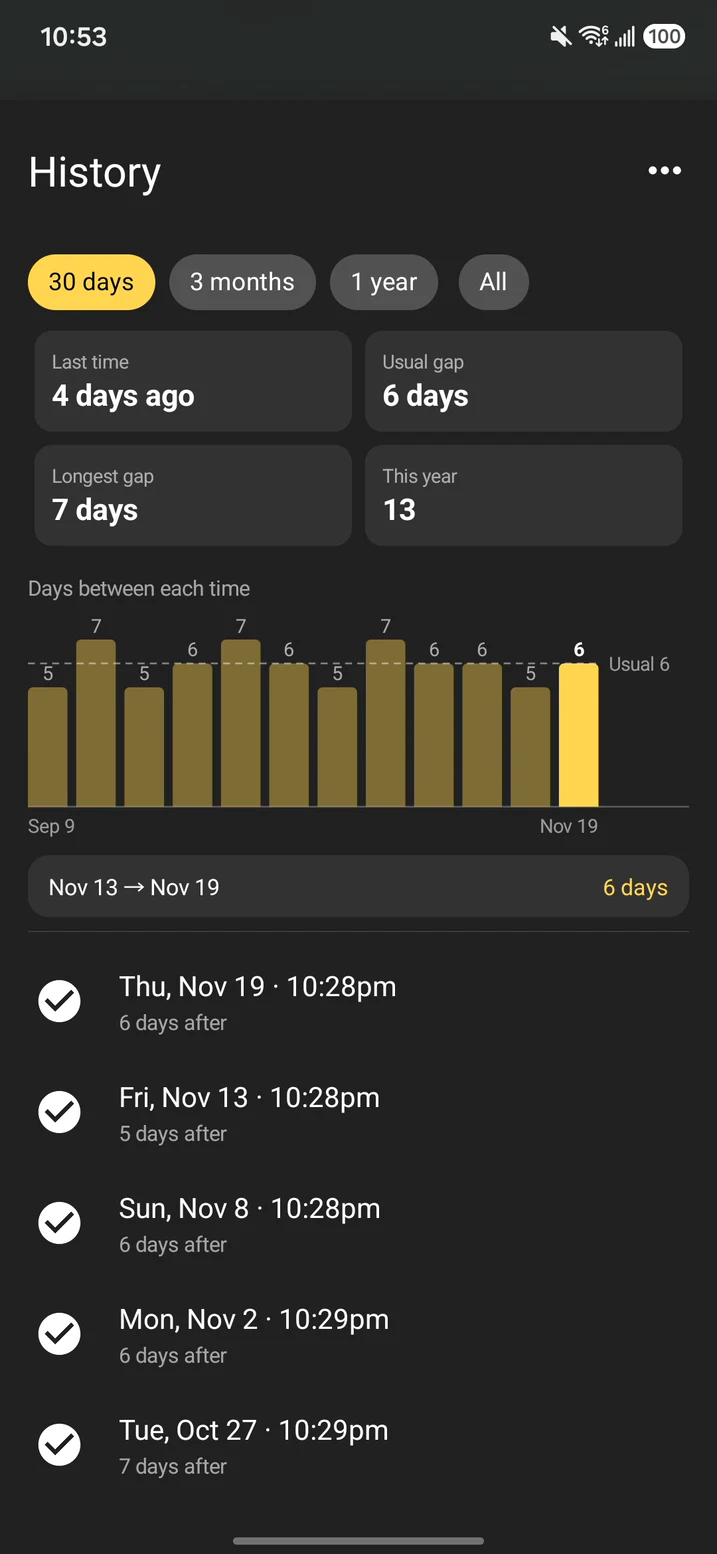
History shows how often you really do something:
- Last time, Usual gap, Longest gap and This year at the top
- A chart of the days between each time, with a dashed line for your usual gap. Tap a bar to see the two dates it spans.
- Every logged time. Tap one to Change date or Delete it.
Use the range chips (30 days, 3 months, 1 year, All) to choose how far back the list goes.
Trackers Without a Checkbox
A tracker doesn't have to look like a task. Open its editor, tap Marker, and pick an icon, a bullet, or None. The checkbox is hidden, the history and the day count stay, and tapping the row still opens the log sheet. Pick Checkbox again to bring it back.
Turning Other Items into Trackers
Any text item can become a tracker. Open its editor, expand the When card and tap Track. Tap Schedule to turn a tracker back into a task or a dated item.
A tracker can't have a date at the same time, and switching away from Track deletes its logged times. Tree Launcher tells you how many and asks before it does.
Day Counts
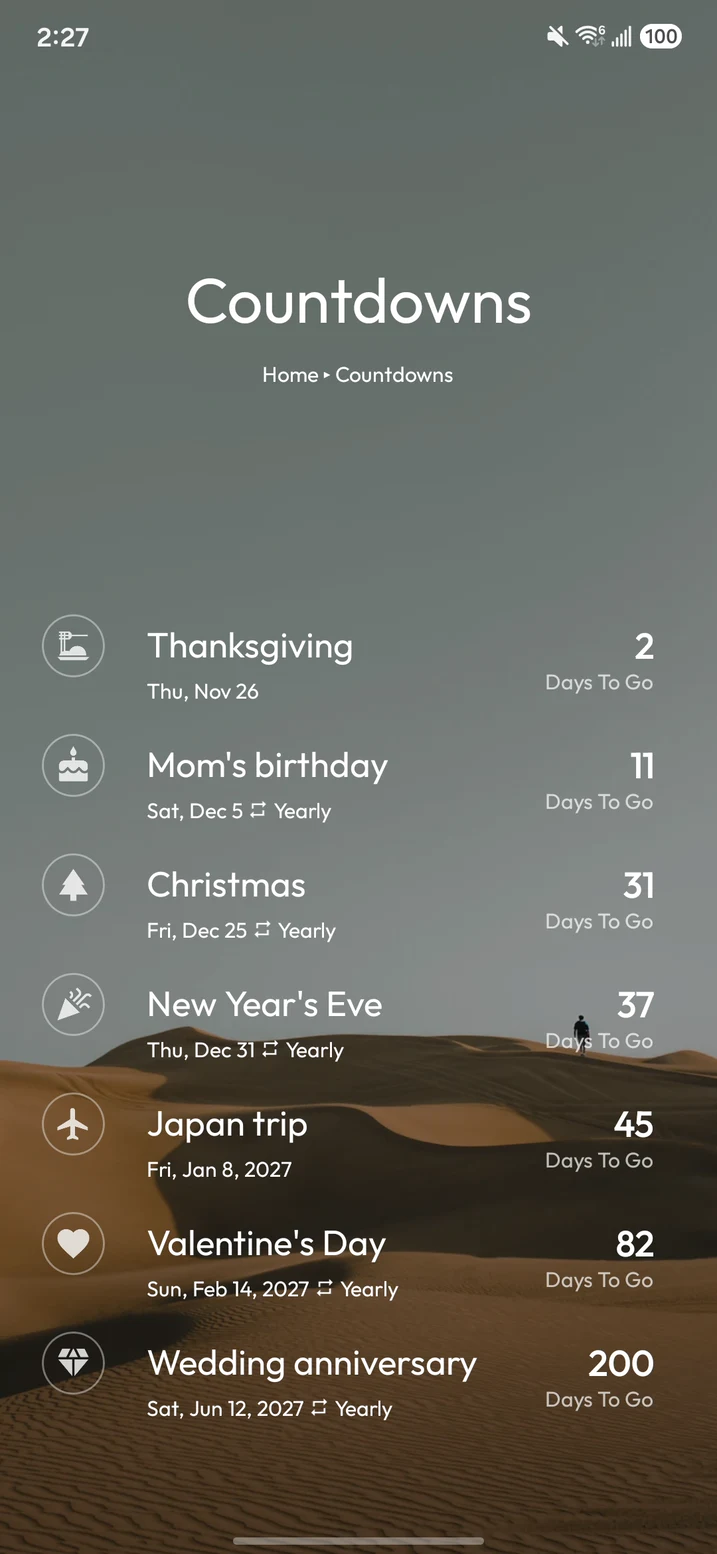
A day count is a number at the end of a row that changes by itself every day. Any item with a date can show one, and so can any tracker.
| On | The row shows |
|---|---|
| A date in the future | Days To Go |
| A date in the past | Days Since |
| A tracker | Days Ago, since you last did it |
| The day itself | Today |
Adding a Day Count
- Open the item's editor and expand the When card
- Set a date if there isn't one
- Turn on Day count
On a single date the count simply runs down to the day and then counts up from it. On a date that repeats, choose Days until (the next one) or Days since (the last one).
The quickest way to start is + → Event, then Countdown for a trip or deadline, or Every year for a birthday or holiday. Both come with the count already on. See Events.
Counters
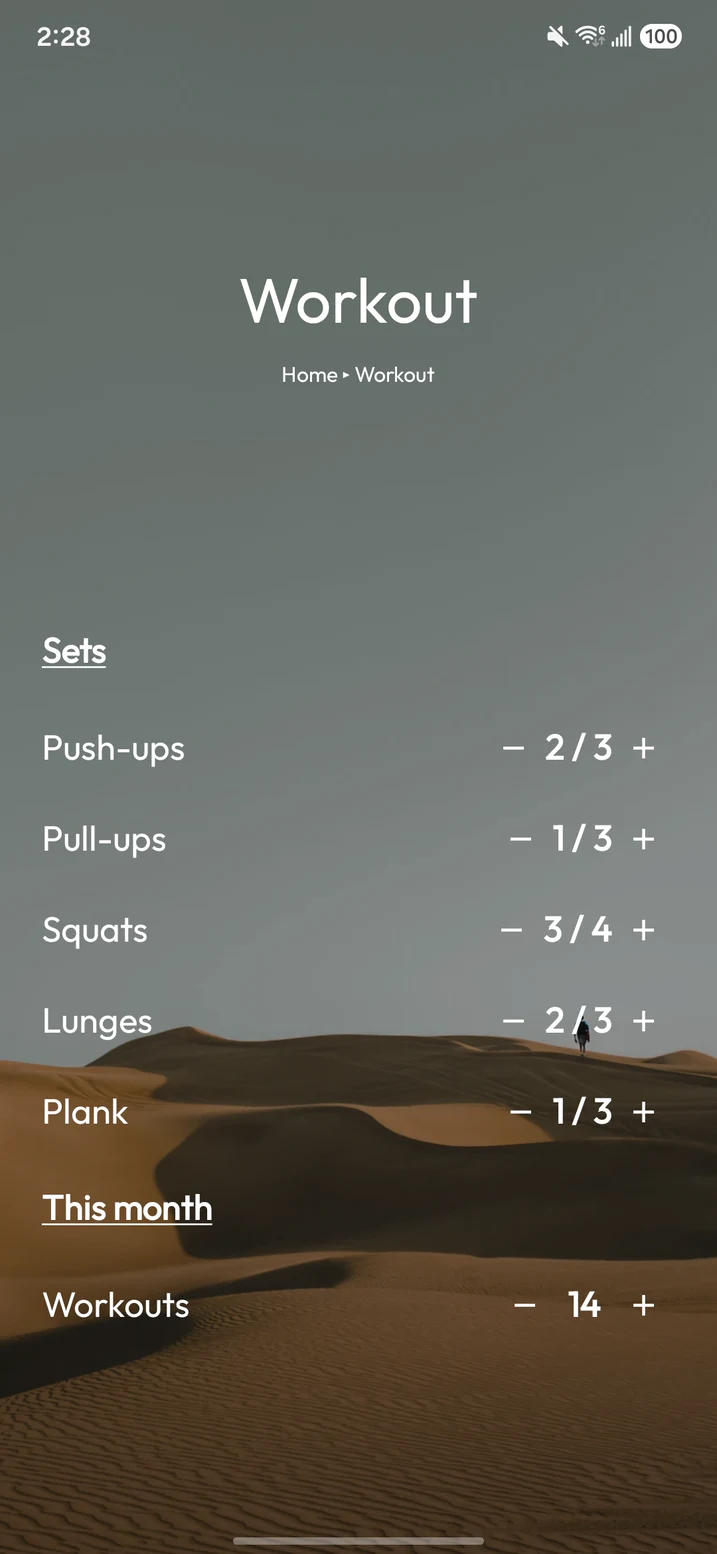
A counter is a number with − and + buttons right on its row. Use it for glasses of water, sets in a workout, books read this year, or anything else you tally.
Creating a Counter
- Enter Edit Mode and tap +
- Under Plan & Track, choose Counter
- Give it a name and tap Create
Using a Counter
Tap + or − on the row to change the number. Each tap gives a short tick, and the number never goes below zero.
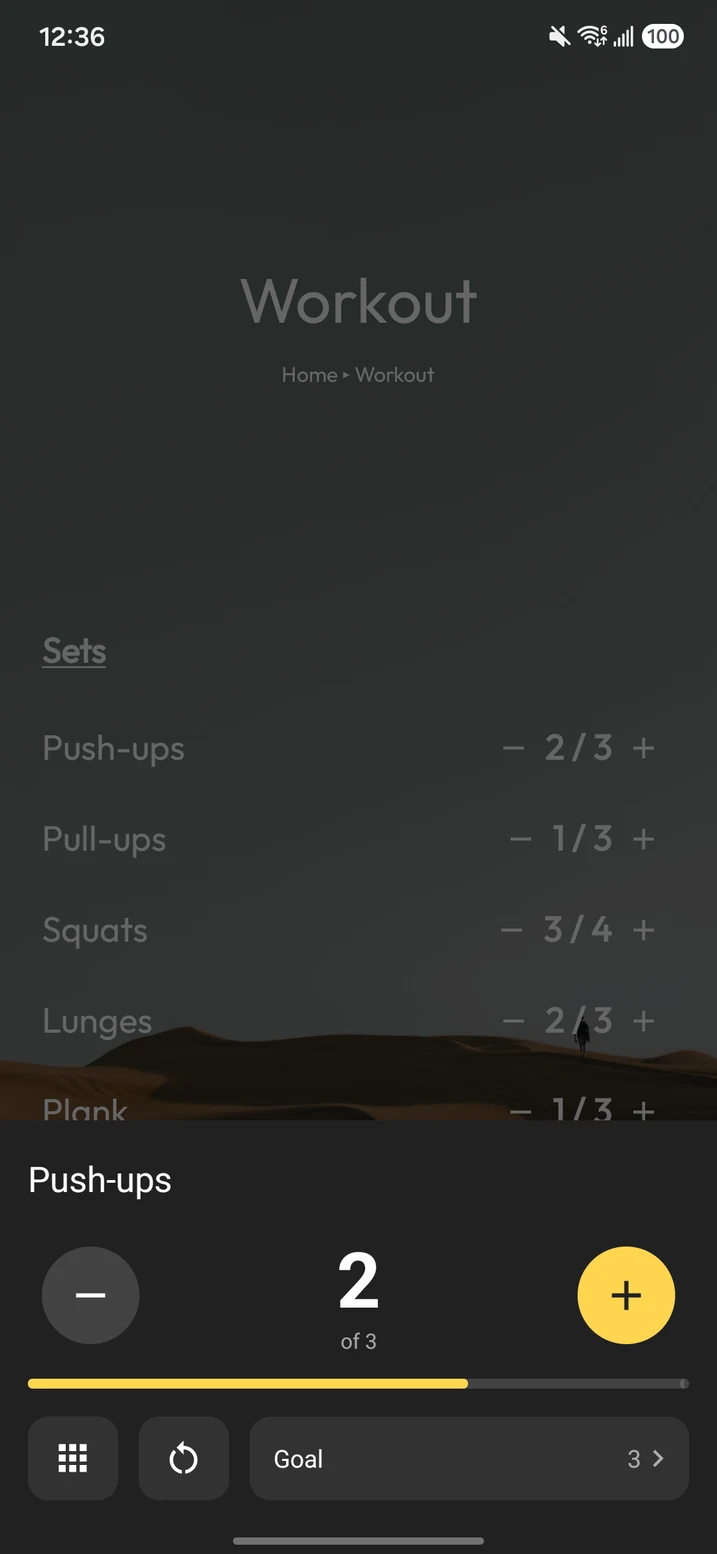
Tap the name or the number to open the counter's sheet, where you can:
- Type a new name or a new number directly
- Set a Goal: pick 3, 5, 10, 25, 50 or 100, or enter any other number. The row then reads 2 / 3, and the sheet adds a progress bar.
- Reset the counter to zero, with Undo
- Tap Marker to give the counter an icon. Counters have none by default.
The Completed View
To look back at what you've done, turn on the Completed view for a page. It lists everything checked off on that page and the pages beneath it, by the day it happened, including each time you logged a tracker. See Scheduled.