Pages
Pages are the core building block of Tree Launcher. Create pages within pages for every area of your life, and swipe right to go deeper, left to go back.
What Are Pages?
Pages are the fundamental building block of Tree Launcher. Every item you create — notes, apps, contacts, links, images, tasks — lives inside a page. Pages can also contain other pages, letting you build a tree structure as deep or shallow as you need.
Think of pages like folders in a file system, but more flexible. Each page displays its contents as a vertical, scrollable list.
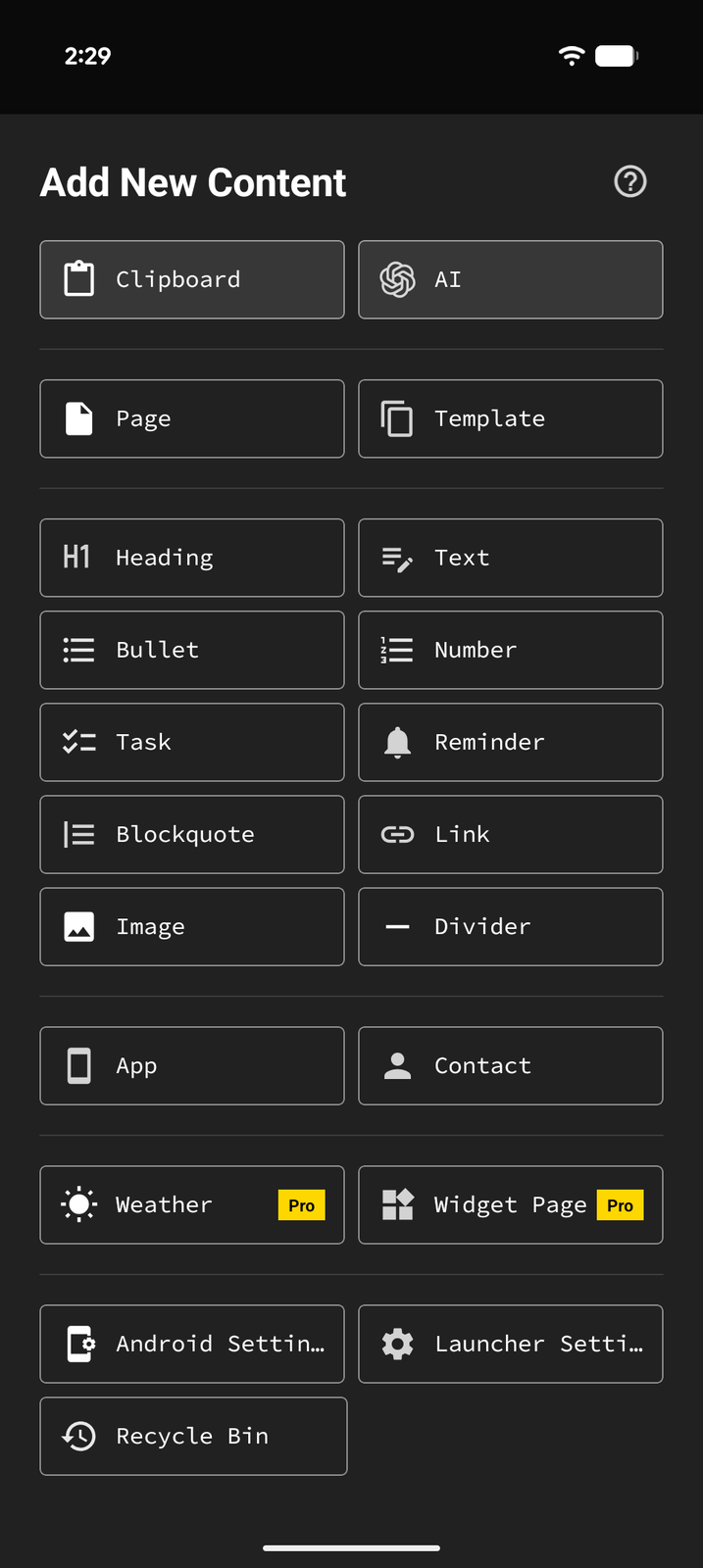
Creating a Page
- Enter Edit Mode on any page
- Tap the + button in the toolbar
- Select Page from the item type menu
- Give your new page a name
Navigating Between Pages
Tree Launcher uses a spatial navigation model based on swiping:
- Tap (or swipe left) on a page item to enter it
- Swipe right (or press Back) to return to the parent page
This creates an intuitive spatial metaphor: - Left = parent/ancestor pages (going "up" the hierarchy) - Right = child/descendant pages (going "down" the hierarchy)

Nesting Pages
Pages can contain other pages, creating a tree structure with unlimited depth. This is what makes Tree Launcher unique — you can organize your content in whatever hierarchy makes sense to you.
Example structure:
Home
├── Work
│   ├── Project A
│   │   ├── Tasks
│   │   └── Notes
│   └── Project B
├── Personal
│   ├── Shopping Lists
│   ├── Recipes
│   └── Goals
└── Apps
    ├── Social
    └── Utilities
Page Templates
You can save a page as a template and reuse it later:
- Enter Edit Mode on the page you want to save as a template
- Tap More (...) on the edit bar
- Tap Save as Template
- To use it, tap + on any page and choose Template under Create from — pick a saved template and a copy is added to the page


Templates are great for recurring structures — weekly planners, project outlines, meeting notes, etc. Pages that contain widgets or reminders can't be saved as templates.
Pop-Out Windows
Pages can be opened as an independent floating window:
- Open the page you want to pop out
- Tap the ⋮ page menu in the top right and choose Open in new window
- The page opens in a separate Android task/window
This option isn't available on the Home page or from inside a pop-out window.
This is useful for multitasking — reference a note while using another app, or have two Tree Launcher pages open side by side.
Styling a Page
You can give individual pages their own look:
- Header — Tap the ⋮ page menu and choose Header to pick a layout, frame, and what the header shows. Each page's header is its own. See Headers.
- Background color — In Edit Mode, with nothing focused, tap Background to set a background color for the page. See Colors & Background.
- Alignment, icons and arrows — In Edit Mode, tap More (...) → Arrange items to align every item, show or hide their icons, and show or hide page arrows in one step. See Arranging Items.
A background image applies to the whole launcher rather than a single page. See Customization for everything else.
Hiding a Page's Arrow
Pages show an arrow on the right of their row. To hide it on one page, focus the page in Edit Mode, tap Properties, tap ..., and turn off Show arrow. The page still opens when you tap it.