Widget Pages
Dedicated pages for embedding Android app widgets.
What is a Widget Page?
A Widget Page is a Pro feature for embedding Android app widgets. Instead of a list of items, a Widget Page holds a single scrolling column of widgets that you can reorder and resize. Opening a Widget Page requires an active Pro subscription.
Creating a Widget Page
- Enter Edit Mode and tap +
- Under Pages, select Widget (marked Pro)
- Enter a name for the page and save
- Tap the new page (or swipe it left) to enter it
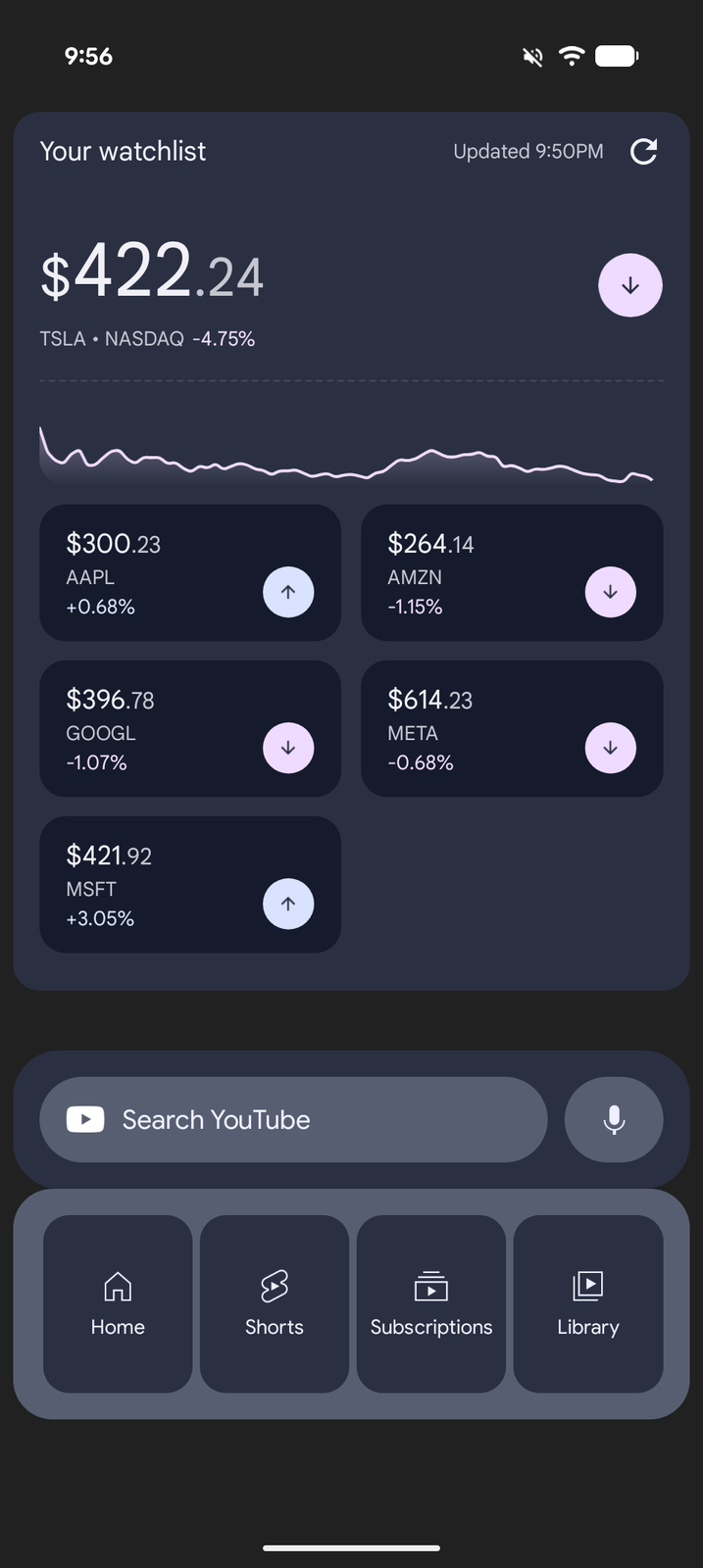
Adding Widgets
- Inside the Widget Page, long-press to enter Edit Mode
- Tap + on the edit bar
- Browse available widgets from your installed apps — a Blank Widget is also offered as a spacer
- Select a widget and configure it if prompted
- The widget appears at the bottom of the page
A Widget Page holds up to 10 widgets (spacers included). Remove one to make room for another.
Using a Widget Page
Widget Pages work like a traditional Android widget screen:
- Widgets display live content from their respective apps
- Tap widgets to interact with them or open their apps
- In Edit Mode, use the controls under each widget to move it up or down, drag its bottom edge to resize its height, or remove it
Deleting a Widget Page is permanent — it doesn't go to the Recycle Bin.
Use Cases
- Dashboard — Stack a clock, weather, calendar, and music widget on one page
- Productivity — Put a task list, a notes widget, and your calendar one above the other, sized so they all fit on screen
- Quick Glance — Set up an information-dense page with everything you need at a glance