Text Content
Writing and formatting text blocks, headings, bullets, numbers, and blockquotes.
Text Blocks
Text blocks are the most versatile content type in Tree Launcher. They support multiple formats and can be promoted to tasks or reminders.
Creating Text
The quickest way to create a text item is to tap an empty area of the page while in Edit Mode. Like many text editors, this focuses the page's last text item — or, if the last item isn't a text block (or the page is empty), creates a new one at the end. Just tap and start typing.
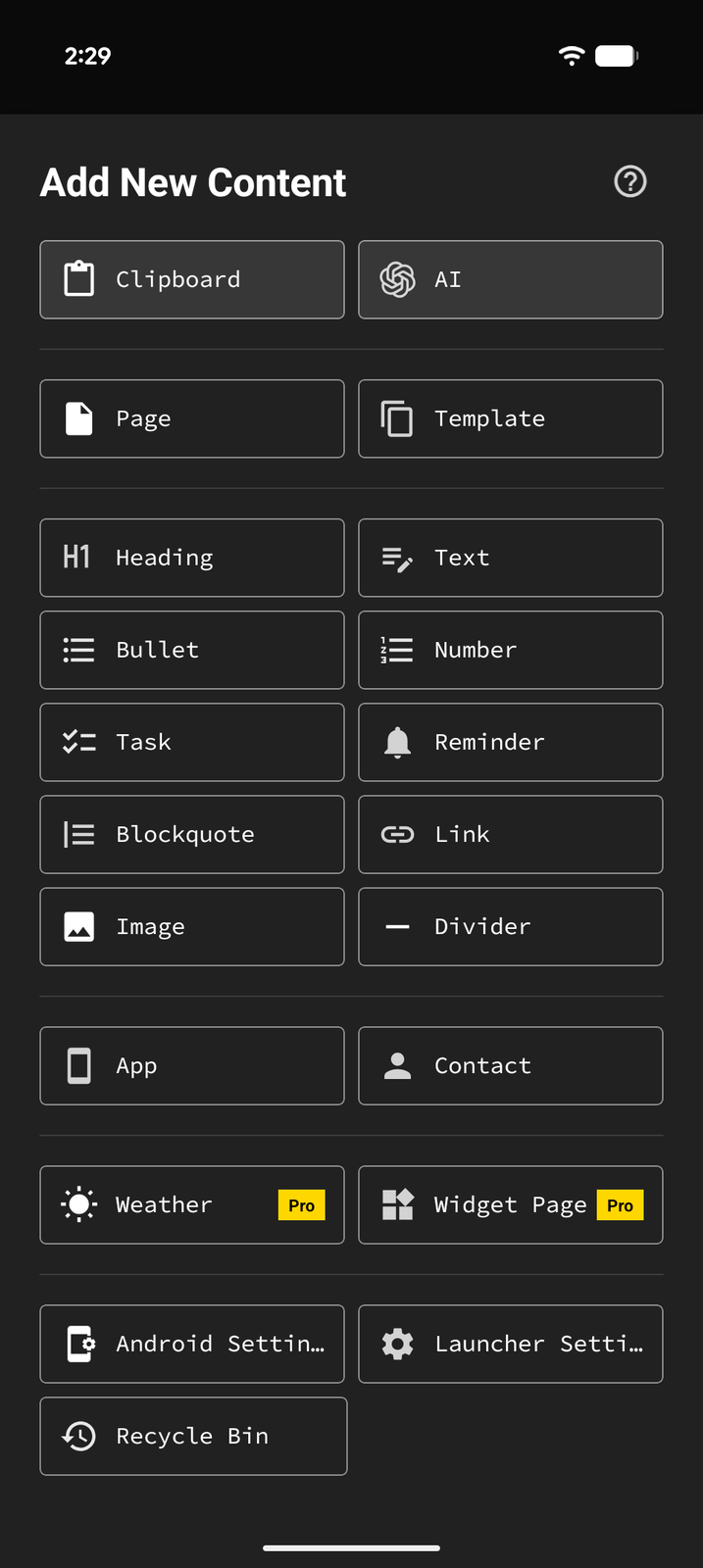
You can also create text from the content menu:
- Enter Edit Mode
- Tap + and select Text (or one of its variants: Bullet, Number, Task, Reminder, Blockquote)
- Start typing
Text Formats
Plain Text
Simple, unformatted text. Use for general notes and content.
Bullet List
Bulleted list items, great for unordered lists and brainstorming.
Numbered List
Automatically numbered items, perfect for steps, ranked lists, or sequences.
Blockquote
Indented, styled text for quotes, callouts, or highlighted content.
Changing Format
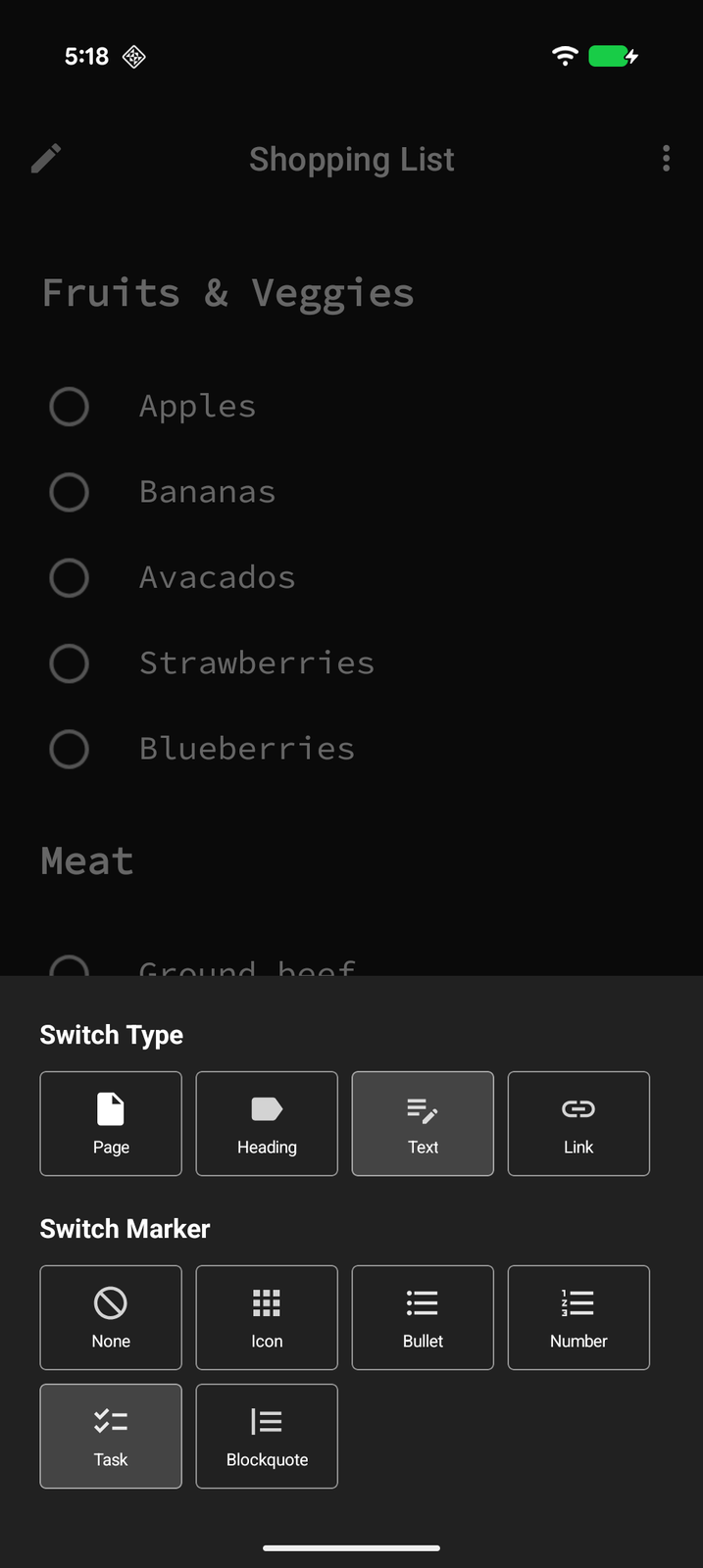
You can change the format of an existing text block:
- Tap on the text item to focus it
- Tap Switch in the edit bar
- Pick a new marker (None, Bullet, Number, Blockquote, or Task) under Switch Marker — or switch the item to a different type (Page, Heading, Text, or Link) under Switch type
Headings
Headings help structure your pages into sections. Three levels are available:
- H1 — Large heading for main sections
- H2 — Medium heading for subsections
- H3 — Small heading for sub-subsections
Add headings from the + menu → Heading, then choose the level.
Markdown Support
Text blocks support CommonMark markdown rendering. You can use standard markdown syntax:
**bold**for bold text*italic*for italic text`code`forinline code[link text](url)for links~~strikethrough~~for ~~strikethrough~~
The markdown is rendered when you exit editing mode, giving you a clean reading experience.
Markdown Export
You can export any page and its contents as universal markdown:
- Open the page you want to export and enter Edit Mode
- Tap Share in the edit bar
- In the Export Data sheet, choose Copy, Share, or Save to a file
To export only some items, use Select Mode, select them, and choose Export under More (...).
The exported markdown is ready to use in any markdown-compatible tool.
Links
Save and organize links on any page. Links are tappable — tap one to open it.
Adding a Link
- Enter Edit Mode and tap +
- Select Link
- Enter a title and the address, then save
Link Types
Links aren't limited to web pages. A link can point to anything your phone knows how to handle, using standard URI schemes:
- Web pages —
https://example.comopens in your browser - Phone numbers —
tel:+15551234567opens the dialer, ready to call - Emails —
mailto:hello@example.comstarts a new email - Locations —
geo:37.7749,-122.4194opens the spot in your maps app
Enter the address with its scheme (tel:, mailto:, geo:, sms:) and the link opens the right app when tapped. Web addresses without a scheme (like example.com) are treated as https://. This turns a link into a one-tap shortcut to call a contact, send an email, or pull up a location — right alongside your apps and notes.
Share-to-Launcher
You can also add links by sharing URLs from other apps:
- In any app (browser, social media, etc.), tap the Share button
- Select Tree Launcher from the share menu
- Choose where to save the link in your tree
See Sharing & Export for more on sharing content into Tree Launcher.